Good software feels invisible: start something on your phone, finish it on your laptop, and never think about how it got there. Apps achieve this the easy way — everything lives on a server. We want the same comfort in a crypto wallet — without giving up self-custody.
In Safely, you can create multiple wallets on your phone, and they appear on your laptop — once the devices are linked. If a device is ever lost, the other keeps everything. All of it works through one mechanism: the sync of accounts.
From one wallet to a synced system
When you open Safely for the first time and create or import a wallet, an account appears automatically — no phone number, email, or password required.
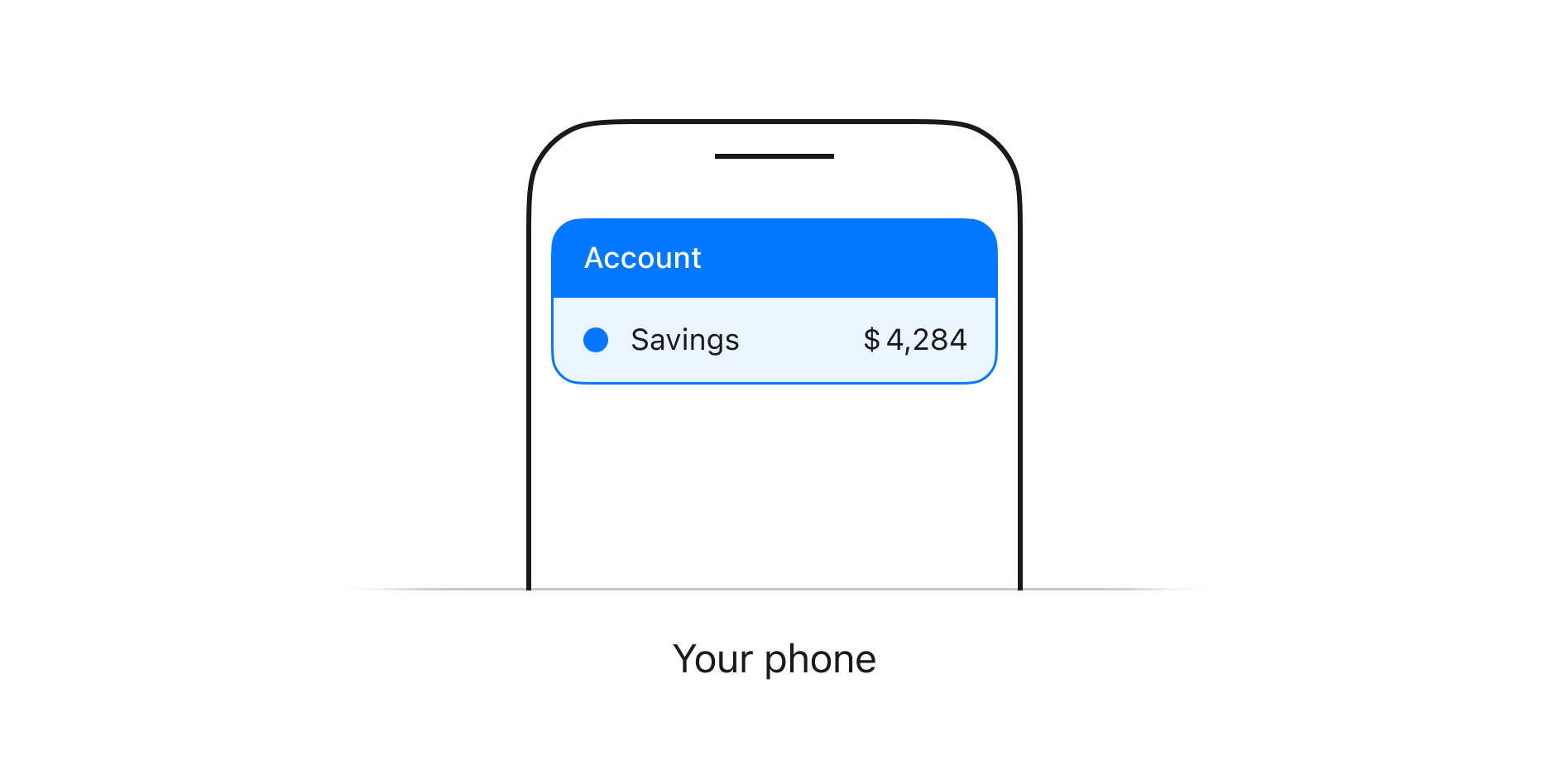
An account is an isolated space on your device where wallets and the data around them live together — the wallets with their recovery phrases, an address book, and specific settings like balance display or preferred currency.
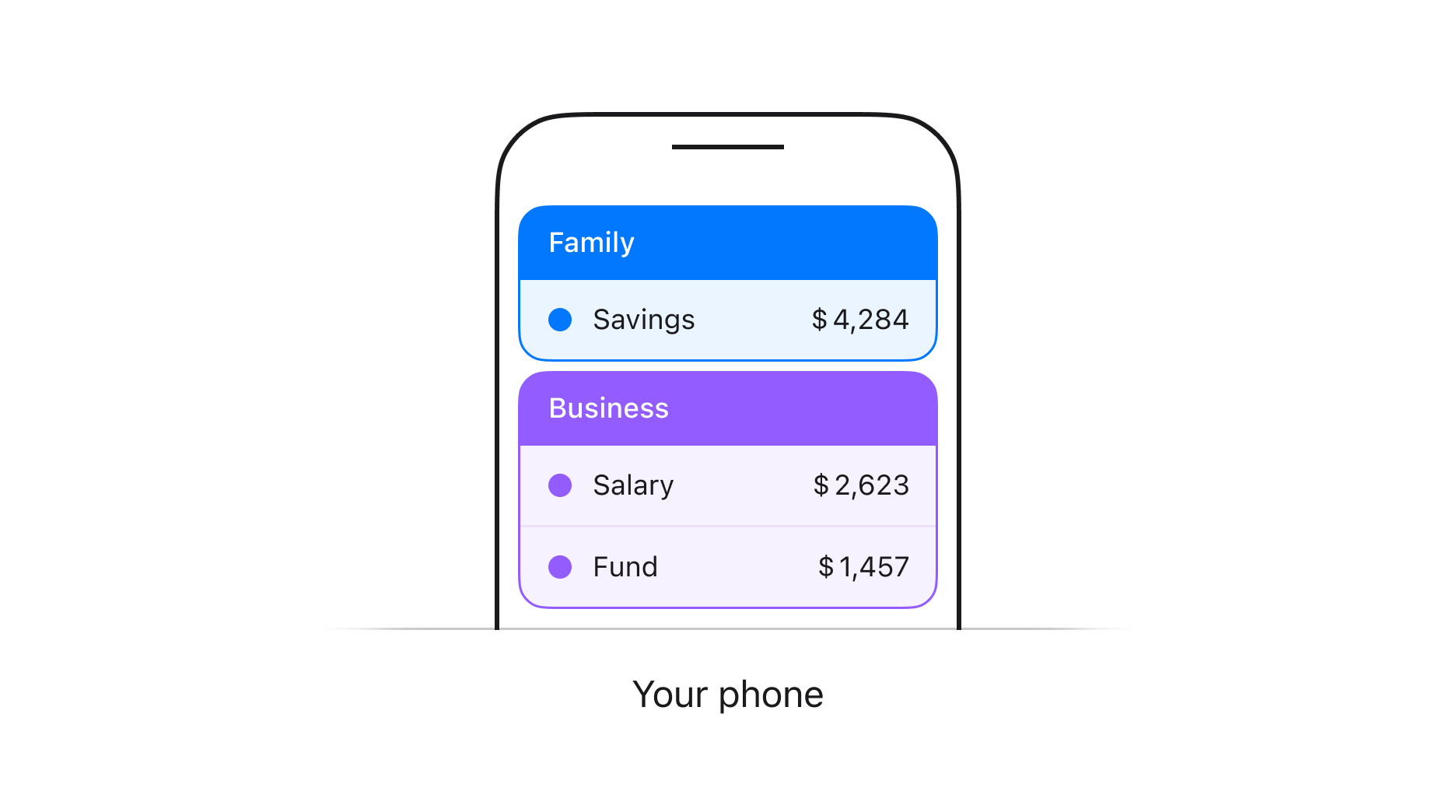
To organise your wallets, create more accounts — one for the family, one for business, one just for a trip. The first one is born as "Account 1", but you can rename any account in Settings.
Each account is sealed off from the others: its own wallets, its own address book, its own settings.
So far, every account exists only on the device that holds it — nowhere else. The only way to protect an account is to link a second trusted device to it: the new device shows a QR code, and your phone scans it. The account is then encrypted and sent over through Safely's server — which relays the data without being able to read it. Not the whole app, not a single wallet — the account, that bundle of data.


Linking is the only door — and it is physical, with both devices in your hands.
Linking works with one specific account, never with the device as a whole — and it tells the new device nothing about your other accounts. To bring a second account over, switch to that account in Settings and repeat the handshake.
From that moment, every linked device keeps up with the account's latest state — every transfer end-to-end encrypted. Create a wallet on the phone — it appears on the iPad. This ongoing process is sync.
The overview of the Safely Sync technology, the full technical specification, and the security audit results are collected in How Safely Sync Works.
Account protection
Keeping an account on several devices is how you protect it as a whole: Safely holds no readable copy and cannot restore a lost one. The server is a relay, not a vault — encrypted data passes through it with no promise of staying there. Data is safe when it has reached a synced device. We recommend keeping every account on at least two trusted devices. Here's an example.
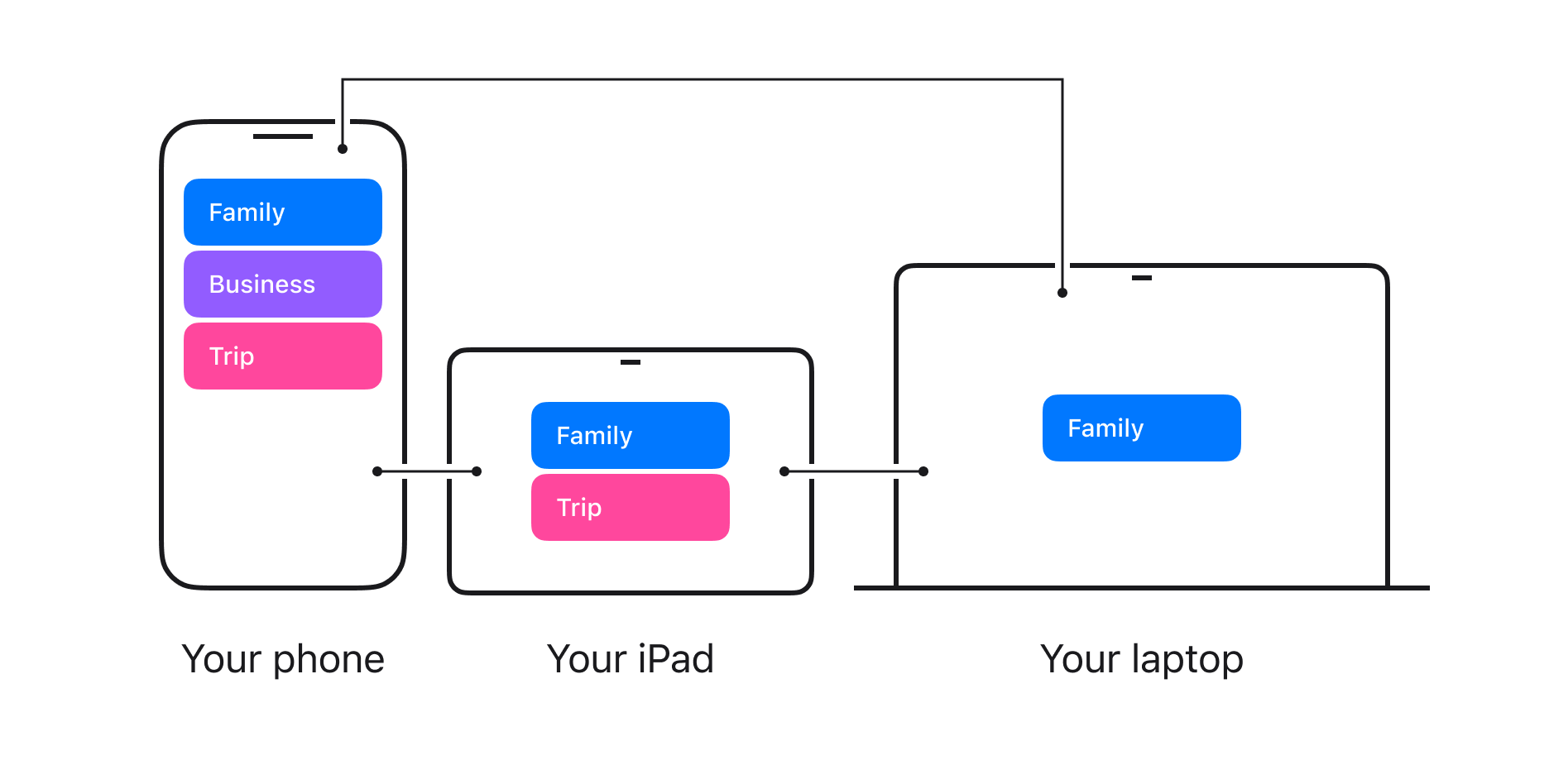
Family and Trip now live on more than one device. If one device breaks or disappears, the account survives on the others.
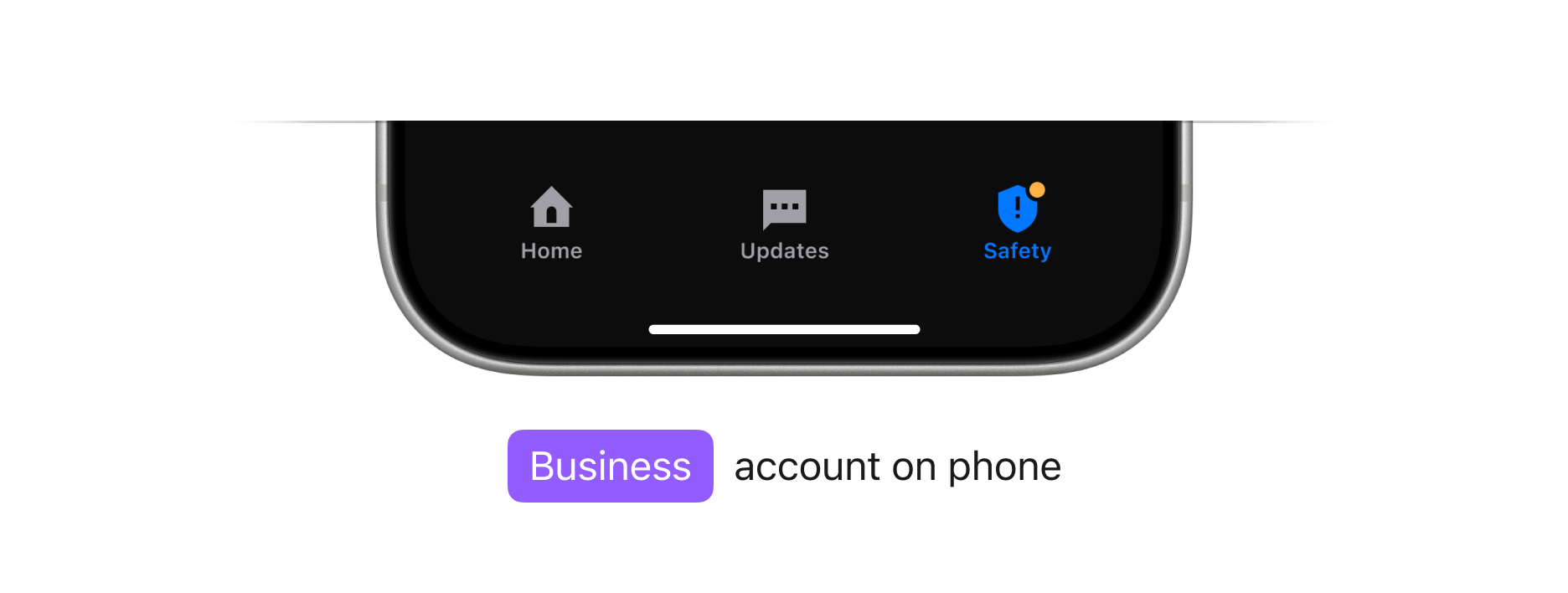
But Business still exists only on the phone — one accident away from being gone. Safely notices and warns you about it on the Safety tab.
Device management
The Safety tab lists every device linked to the current account with its status.
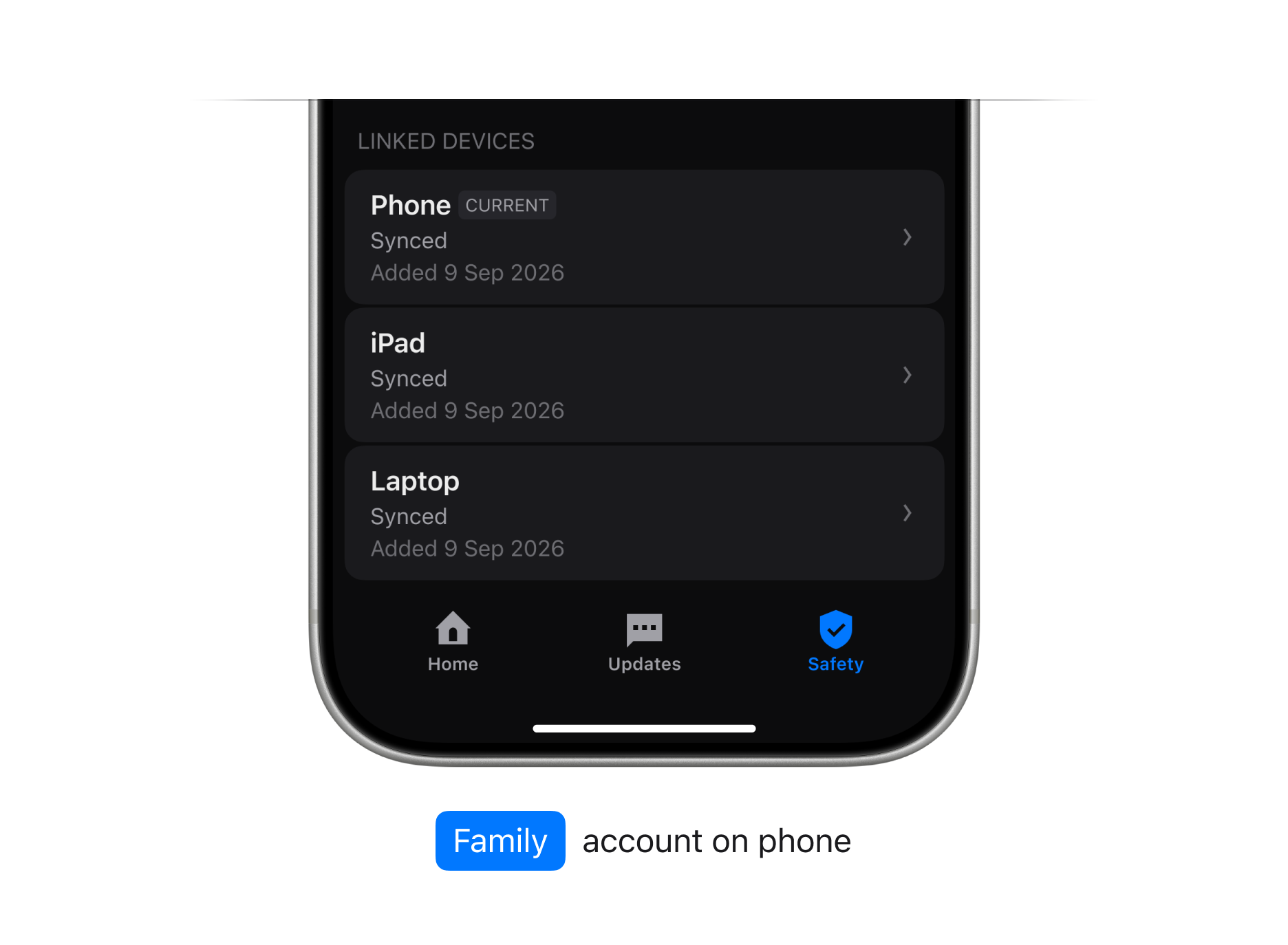
What the statuses mean
The sync status shows one thing: whether the device holds every recovery phrase in the account. Separately, Safely warns when a device has not connected for a long time — and lets you archive devices that are offline on purpose.
- Synced — the device holds every recovery phrase in the account. While it stays online, new changes reach it within moments.
- Not synced — one or more recovery phrases have not reached this device yet. Open the app on that device, and it will catch up.
- Unknown — the status cannot be read: the app versions on your devices are out of step. Update Safely to the latest version, and the status will reappear.
- Last connected over a month ago — a separate signal, about silence rather than completeness. Nothing is wrong by itself — but only you can check whether the device is still in your hands.
- Archived — a display mode, not a sync state: the device stays linked and will catch up whenever it comes back online, but it no longer triggers warnings. Use it for devices that are offline on purpose — locked in a safe, for example.
Archiving does not unlink a device — it will sync again the moment it reconnects. It must never stand in for the theft steps in the FAQ below.
The whole picture
An account is an isolated space for wallets and the data around them. It lives only on your devices: the only way in is to link a new device by hand, and the only thing the server ever sees is encrypted data it cannot read.
That design leaves Safely with no power over your money — and no way to help if every copy is gone. So the protection is yours, and it is simple: keep every account on at least two trusted devices, and glance at the statuses now and then. If a device ever falls into the wrong hands, move your money to a fresh account — fast.
Everything else happens quietly on its own: create a wallet on one device, and it's on the others. The comfort of the cloud, without trusting the cloud.
FAQ
How can I create an account?
To create another account, go to Settings → Add account.
How can I switch to another account?
Go to Settings → Current account name → select the required one.
How do I link a new device?
Say your phone's account holds 15 wallets and 8 address book entries, and you've just bought an iPad.
- Download Safely on the iPad and open it.
- On the iPad, select Link with QR. A QR code appears.
- On the phone, go to the Safety tab → Link device, and scan the code.
- Done. The account is now on both devices.
To bring all your accounts to the new device, repeat the handshake for each — every account syncs independently.
Only sync with devices you own and trust. Whatever you sync with receives your recovery phrases.
How do I link a device that already has an account?
Say your phone holds Account A, your iPad holds Account B — and you want Account A on the iPad too.
- On the iPad, go to Settings → Add account → Link with QR. A QR code appears.
- On the phone, go to the Safety tab → Link device, and scan the code.
- Done. The iPad now holds both accounts, A and B — you can switch between them in Settings.
Only sync with devices you own and trust. Whatever you sync with receives your recovery phrases.
Can I restore my account with a recovery phrase instead?
A recovery phrase alone can restore a single wallet anywhere — but just that wallet, not the account. Sync brings everything: every wallet in the account, the address book, the settings.
I created a wallet, but the device was lost before it synced. Is the money gone?
If the wallet was created in a synced account — the money is safe. On your linked device, create new wallets in that account until the lost one reappears: same address, same recovery phrase. The money is waiting there.
This works because wallets created in an account can always be regenerated on any of its linked devices. Two exceptions: imported wallets can't be regenerated this way, and if the account itself never left the lost device, it is gone entirely.
Can I remove a device remotely?
No — a device can be removed from an account only on the device itself.
My device is lost or stolen
Assume that whoever holds the device can extract the recovery phrases stored on it — and that the device keeps receiving everything you add to its accounts. That's why a new wallet in the same account won't save you: its recovery phrase would sync straight to the stolen device. Only a new account breaks the connection.
- If the accounts on it were synced: on another synced device, go to the Safety tab → choose the lost or stolen device → Need help with this device → follow the instructions. The app will walk you through creating a new account with new wallets and moving your money there as quickly as possible. The old account must be treated as compromised for good: stop using it, never reuse its recovery phrases, and move the money to the new one. Do this for every account that was on the lost device.
- If the accounts weren't synced: the account itself cannot be recovered — by you or by anyone else. If you keep paper backups of the recovery phrases, the wallets can be restored from them into a new account; the rest of the account — the address book and settings — is gone. Move the money immediately: the thief may hold the same phrases.
My device is broken and won't turn on
If nobody else can access the device, there's no emergency: your accounts are intact on your other devices. Just archive the broken one: Safety tab → Need help with this device. If the broken device was the only one — see the previous question: an unsynced account cannot be recovered.